
How to reduce phone distractions without giving up your phone
Reduce unwanted phone interruptions with practical notification, focus and usage settings while keeping the tools and contacts you need.
By TopicWeekPublished 8 min read
In this article
A phone can interrupt an activity, help you complete it, or do both at different times. Reducing distractions does not have to mean deleting useful apps or switching off every alert. A better starting point is to notice which interruptions you want to change, then keep the calls, messages and accessibility tools you rely on.
A notification is not the same as a phone check
An alert may arrive without being seen; seeing it does not require an answer; and opening an app by choice is different again. An external sound, banner or vibration can prompt a check, while boredom, a remembered task or a familiar moment can prompt one without an alert. Some checks are essential or enjoyable. Focus on the ones that break into something you meant to do.
In a laboratory experiment, analysis of 166 undergraduates found that notifications alone disrupted performance on a sustained-attention task, even when participants did not interact with the phone (Stothart et al., 2015). That supports the possibility that alerts can distract; it does not mean every alert harms every person or that each interruption has the same cost. A one-day field study with 30 volunteers found mixed experiences after push notifications were turned off: some felt less distracted, while some reported anxiety or feeling less connected (Pielot & Rello, 2017). It was small and brief, so it is not a promise of benefit from silencing everything.
Notice the interruptions you actually want to reduce
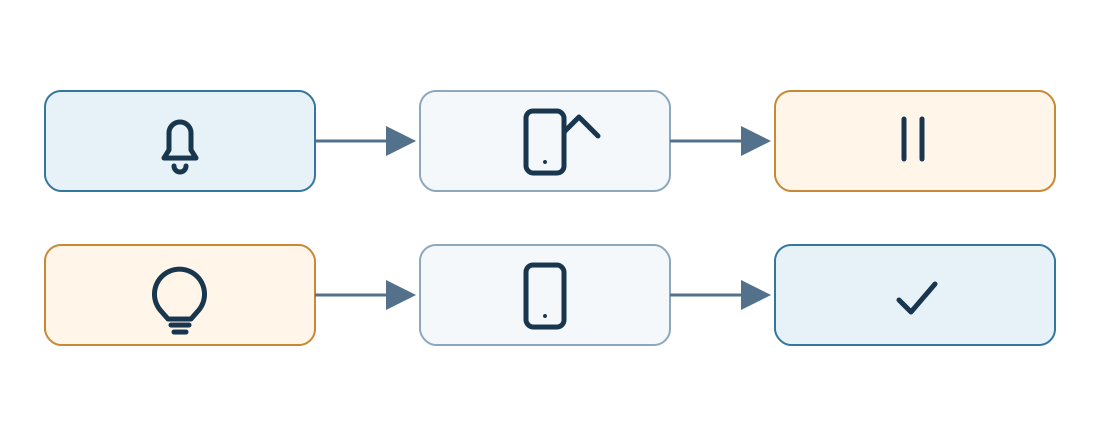
For a few ordinary days, notice what tends to interrupt you: a sound, a group chat, a promotional alert, seeing an app on the home screen, or reaching for the phone during a pause. You do not need to count every pickup. A quick note about the situation and whether the interruption was useful can reveal a manageable first change. This is personal observation, not a diagnostic test.
Sort notifications by how much you need them
- Keep what matters: for example, selected calls, care responsibilities, safety-related alerts, accessibility functions or work messages that truly need a quick response. Which alerts are essential depends on your situation.
- Review what can wait: non-urgent email, news, app updates and some group conversations may be easier to check at a chosen time or receive in a summary, where the device supports it.
- Consider muting optional prompts: promotions, recommendations and invitations you did not ask for are often candidates for turning off. Check that an app does not use the same permission for something you need.
You can often change alerts app by app, including sounds, banners or lock-screen display. Names and controls vary by operating-system version and manufacturer. Avoid turning off essential alerts indiscriminately; after changing a setting, check whether the communication channel you rely on still works.
Use the focus tools already on your phone
On iPhone, Focus can silence or allow notifications from selected people and apps, and can be scheduled or linked to certain screens and filters. Screen Time can show usage information and offer app limits or scheduled downtime. Apple also documents notification summaries and app-level notification controls; availability and names vary by version. See Apple’s Focus guide and Screen Time guide.
On Android, Digital Wellbeing may show screen time, app opens and notifications; supported devices offer app timers and Focus mode, which can pause selected apps and their notifications. Do Not Disturb or Modes can filter interruptions and allow chosen exceptions. The exact options differ across Android versions and manufacturers, so consult the help for your device. Google’s Digital Wellbeing overview and Do Not Disturb guide describe common controls; Pixel features can differ from other Android phones.
A focus mode or app timer is a support for a decision, not a guarantee that an app cannot be opened or that attention will improve. Try a less restrictive setting first if you need to stay reachable. Emergency and critical-alert behaviour depends on the service, app, device and configuration; do not assume a focus setting will pass through every urgent message. Test an appropriate contact route and keep the alerts your responsibilities require.
Make useful actions easier to find
You could move highly distracting apps off the first home screen without deleting them, group optional apps in a folder, or keep essential tools easy to reach. Turn off badges or previews only if they are not useful to you. These are practical experiments, not proven universal fixes. Grayscale is also a preference to try, not a guaranteed way to reduce use.
Choose a purpose before you unlock
A brief question—“What do I want to do on my phone now?”—can help separate a needed lookup or reply from an automatic check. Recreation is a valid purpose too. If you have opened an app without a clear reason, you can still decide to continue or return to your activity; the aim is choice, not guilt. Some checking can be linked to familiar cues and repeated routines, but there is no guaranteed formula for changing it. Our guide to building lasting habits explains cues and repetition in more detail. If night-time alerts are your main concern, see our guide to sleep habits.
If you need to stay available
People on call, caregivers, freelancers, workers using customer messaging and people relying on accessibility features may not be able to silence a phone. You might separate urgent channels from lower-priority ones, use a focus mode that allows specific contacts, or agree on a suitable response window where your work permits. Do not silence safety, care or work alerts that you are required to receive. No setting can decide which channels are essential for you.
Read usage metrics in context
Depending on the phone, reports may include app time, pickups or unlocks, and notification counts. These are device-specific measures, not clinical scores. Screen time alone does not show whether use was useful, required for work, accessible, social or unwanted. A change in minutes is not automatically a change in wellbeing. Use a metric only if it helps answer a question you care about; otherwise, ignore it.
Try one small, reversible adjustment
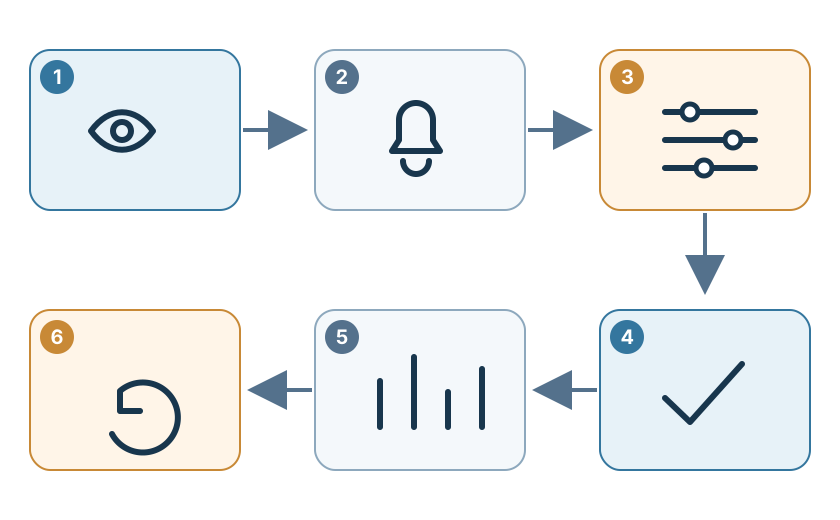
- Notice one interruption that you would prefer to reduce.
- Choose one setting to change, such as muting promotional alerts from two apps.
- Try it for a period that fits your routine. A week can be a convenient review point, not a scientifically required duration.
- Check both sides: were there fewer unwanted interruptions, and did you miss a message or feature you needed?
- Keep the change, adjust exceptions or reverse it. You are testing fit, not proving a treatment works.
Three everyday examples
- A student: messages and social alerts appear while studying. They could silence non-essential app alerts during a study period while allowing a family contact or necessary school channel. If that blocks something important, they can narrow the setting. The best choice depends on their responsibilities and study environment.
- A professional who must be reachable: a worker uses messaging for urgent customer requests but is also interrupted by secondary groups. They might keep the work channel and selected contacts available while muting optional groups or previews, if workplace policy allows it. They should not silence required alerts.
- Reading for pleasure: someone wants to read without repeatedly checking the phone. They can place it nearby for necessary calls but face down, move optional apps off the first screen, or use a permissive focus setting. Enjoying a later phone break is still a choice; no outcome is guaranteed.
A quick checklist
- Which alerts do I genuinely need to receive promptly?
- Which are optional, promotional or easy to review later?
- Are there groups or apps I can mute without losing an essential channel?
- What activity is most often interrupted, and what tends to prompt the check?
- Would a focus mode, summary, home-screen change or no change suit me?
- Have I kept important contacts, safety alerts and accessibility tools available?
- What small adjustment can I try, and how will I decide whether to keep it?
Common myths, more carefully stated
- “Every phone alert ruins concentration.” Alerts can interrupt some tasks, but seeing, responding and choosing to check are different; effects depend on the situation.
- “Lots of screen time means addiction.” Duration alone does not diagnose a condition or show whether use is harmful.
- “Deleting social apps is the only solution.” Notification choices, schedules and screen layout may help some people while keeping useful functions.
- “One setting works for everyone.” Work, care, safety and accessibility needs differ, as do phone models and software.
When to seek more support
Frequent phone use by itself is not a diagnosis. If digital behaviour is persistently distressing or substantially interferes with sleep, work, study, relationships or daily responsibilities, consider speaking with a qualified health professional. This guide offers practical organisation ideas, not a mental-health assessment or treatment.
Frequently asked questions
Do I need to turn off all notifications? No. Start with alerts you do not need and keep channels that matter to your safety, care, work or access needs.
Are iPhone and Android focus features the same? They offer overlapping ideas, but names, availability and exceptions vary by software version and device maker. Check your phone’s current documentation.
Should I aim for a particular daily screen-time number? There is no single target that fits every person and purpose. Consider whether your use aligns with your priorities and whether unwanted interruptions are getting in the way.
Reducing phone distractions is usually a process of choosing which interruptions deserve access to your attention. Keep useful technology available, adjust one thing at a time, and let your real responsibilities guide the settings.
Related guides

Lifestyle
How to build lasting habits: what science says beyond 21 days
Learn how habits develop, why 21 days is not a universal rule, and what practical steps may help a behaviour stick.
7 min read

Lifestyle
How to sleep better: habits that support healthy rest
Explore practical sleep habits involving schedules, light, caffeine and the bedroom environment, with evidence-based limits and guidance on when to seek help.
7 min read

Lifestyle
How to store perfume properly and help prevent changes
Learn where to store perfume, what can affect a fragrance, and how to read PAO without assuming a universal expiry date.
6 min read