
How to back up Android: Google, photos and files step by step
Learn how to back up Android with Google, save photos and files, transfer data and check what can be restored.
By TopicWeekPublished 11 min read

In this article
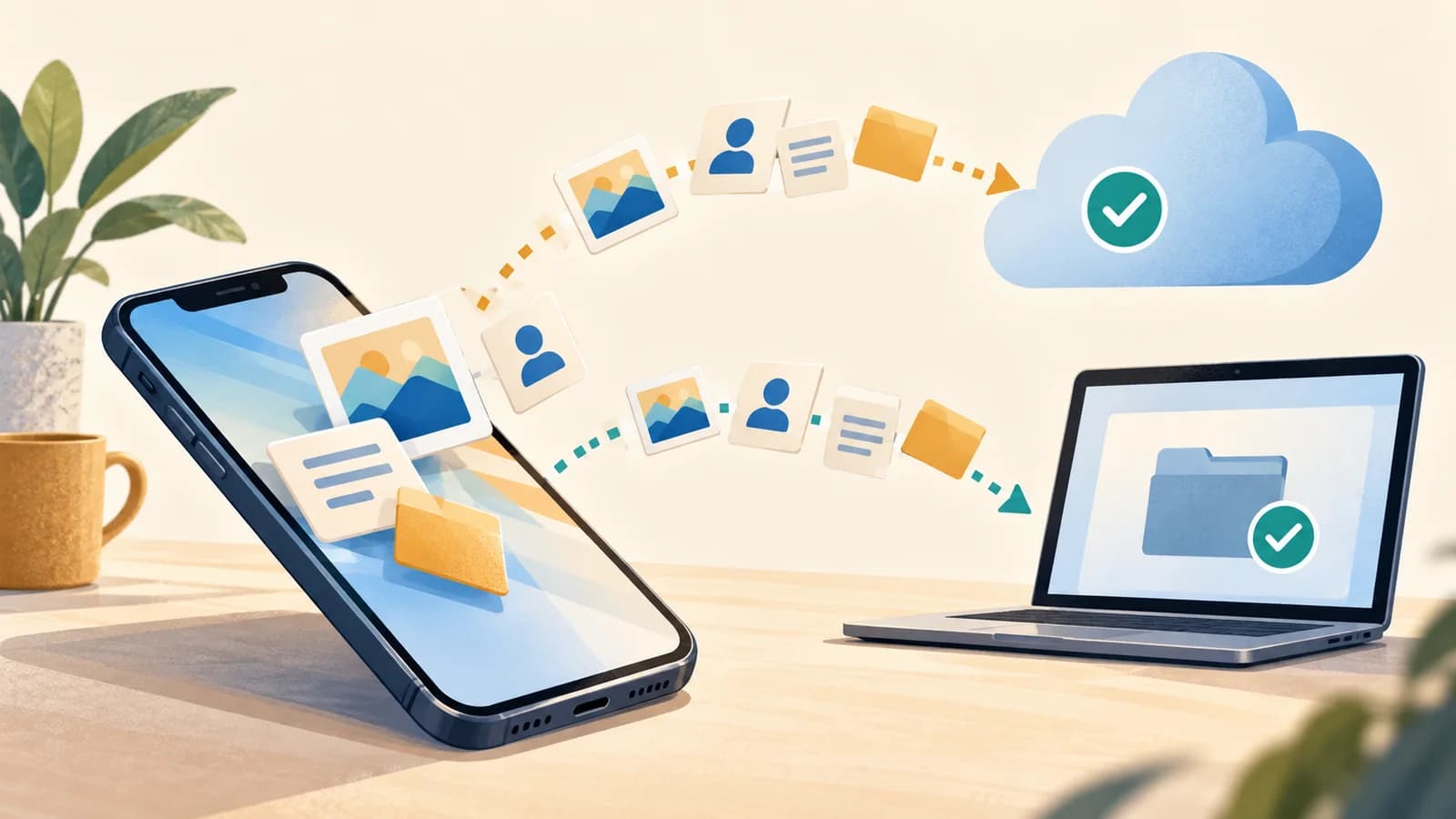
You can protect an Android phone with Google backup on supported devices, Google Photos for selected pictures and videos, Drive for specific files, a computer for accessible folders, or a manufacturer tool such as Samsung Smart Switch. Each method covers different information; none guarantees every app, password, conversation and local file is saved. Menus and features vary by Android version, manufacturer, region and Google services. See Google’s Android backup guide.
Available methods and how to choose
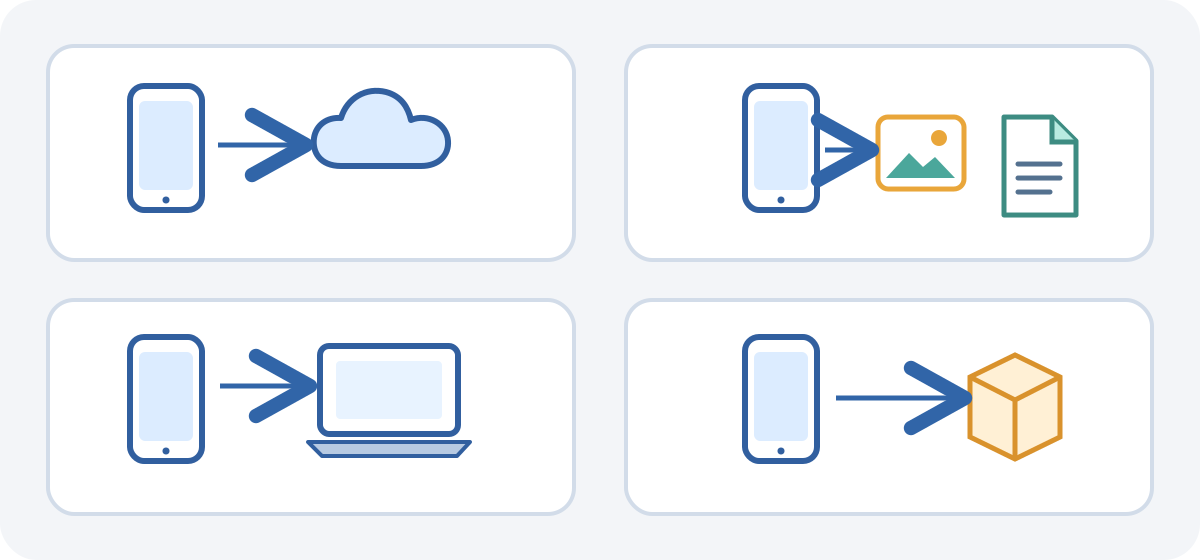
Google device backup saves certain compatible data; Google Photos uploads selected photos and videos; Drive stores files you choose; USB copies accessible files; Smart Switch is for some Galaxy devices. Some apps—such as banking, authentication, messaging and work apps—have their own process. You can combine methods, but do not assume one contains the others’ data. For irreplaceable information, verify each destination separately.
Before you start
- Check you can access the right Google Account and its recovery methods.
- Charge the phone and use a trusted connection. Check storage in the account, phone and computer separately.
- Note which important data depends on a particular app, another account or a local folder.
- Do not remove accounts, turn off sync or reset the device to troubleshoot until you understand the effects.
Back up Android with Google
On many phones, open Settings > Google > All services > Backup, or a manufacturer section such as Backup and restore. Search Settings for “backup” if the path differs. Labels and categories are not identical across brands and versions; phones without Google services and managed profiles may not show these options. Google says backup is unavailable on personal devices set up with a work profile or for work only, and on company-owned devices; check with the administrator for managed phones.
- Open the backup section and confirm the selected Google Account.
- Review the categories and turn on device backup if available.
- Tap Back up now if shown. Keep the phone connected while it runs.
- Return later and check the date or status of the latest completed backup. A backup still in progress is not finished.
Once enabled, Google can back up selected categories automatically. This is not proof that every future run succeeds. Google says a backup may take up to 24 hours; this is a possible duration, not a promise for every device. Check its status again before switching phones.
Google says backup data is encrypted in transit and that some backup data is also end-to-end encrypted using the phone’s screen-lock PIN, pattern or password. This additional protection does not apply to every item; Google specifically excludes Google Photos photos and videos and carrier MMS media from that screen-lock encryption. Do not generalize it to all Drive files or third-party apps. Not every app saves all its data: downloads, sessions, authentication tokens, data in other accounts or local content may need separate steps.
Back up photos and videos with Google Photos
Open Google Photos, check the account from the profile menu, then look for Photos settings > Backup and turn it on. Review the account, upload quality and mobile-data setting. Device folders such as screenshots or downloads may need to be enabled separately. Wait for Backup complete and check important items; seeing a picture in the phone’s gallery does not prove it was uploaded. See Google Photos Help.
Google Photos storage is shared with Drive and Gmail in your Google Account. Free up space on this device removes eligible local copies that have already uploaded; check their backup status first. Afterwards, you may not see those files in the phone gallery or offline, though they remain in Google Photos when you sign in. See Google’s official free-up-space guidance.
Save files to Google Drive
In the Drive app, confirm the account, tap New > Upload, choose files and wait for them to appear in My Drive. Open a few to verify them. Drive stores selected files; it does not automatically back up every Android setting or private app database. Files count toward shared account storage and changes may sync across devices, so an upload is not necessarily an independent historical archive. Follow Google Drive’s instructions.
Copy Android files to a computer
Google documents USB file transfer for Windows and Chromebook: unlock the phone, connect a data-capable cable, tap the USB notification and choose File transfer. In the computer’s file browser, copy accessible folders to a named location; do not move them. Wait for completion, open some files on the computer and disconnect safely. A charge-only cable cannot transfer data. Google’s general instructions do not define a universal Android-to-Mac USB method. On Mac, use Drive or Photos in a browser, or a tool the manufacturer confirms for the model and macOS version. Quick Share, where available, transfers selected files; it is not a full backup. See Android USB transfer help.
Samsung Galaxy: when to use Smart Switch
Smart Switch is available for compatible Galaxy devices, not Android phones in general. Samsung offers official Windows and Mac versions for computer backup and restore. Menus and supported data vary by model and software version; download the app only from Samsung. A direct phone-to-phone transfer does not automatically leave a computer backup. microSD or USB storage support also depends on the model. See Samsung’s official Galaxy backup and restore and Smart Switch guidance.
- Computer backup or restore: download Smart Switch for Windows or Mac from Samsung. Connect the Galaxy by USB and follow the app prompts to make a backup. To restore, connect the phone and choose an available backup in the relevant option. Wait for the app to report completion.
- Direct transfer: follow Smart Switch instructions on the new Galaxy and choose the source phone and the cable or wireless method offered. Select the data shown and wait for completion. Check important items afterwards; this transfer is not a separate historical backup.
Contacts, messages, WhatsApp and other apps
Contacts may belong to Google, a SIM, phone storage or another account; check their source. Android backup may include supported SMS/MMS; RCS depends on Google Messages. WhatsApp has its own backup and transfer process. Check its latest backup, Google Account and phone number before switching. Old and new chat histories cannot be merged: restoring the old history may replace messages received on the new phone. WhatsApp also does not guarantee every transfer will complete successfully. Do not clear data or uninstall WhatsApp without checking its instructions and considering the risk to recent messages. Banking, authenticator, work, game and external-service apps may need their own migration or sign-in.
Backup, sync and transfer are different
A backup keeps selected data for possible restoration; sync keeps compatible information up to date in a service or across devices; a transfer moves selected data to another phone. None is automatically a complete, independent archive. Photos and Drive have their own scope and deletion behavior. A USB folder does not include system settings or every app’s private database; a manufacturer tool may transfer data without leaving a historical copy. Check critical app instructions and confirm where the data is stored.
Restore a backup or move data to another Android
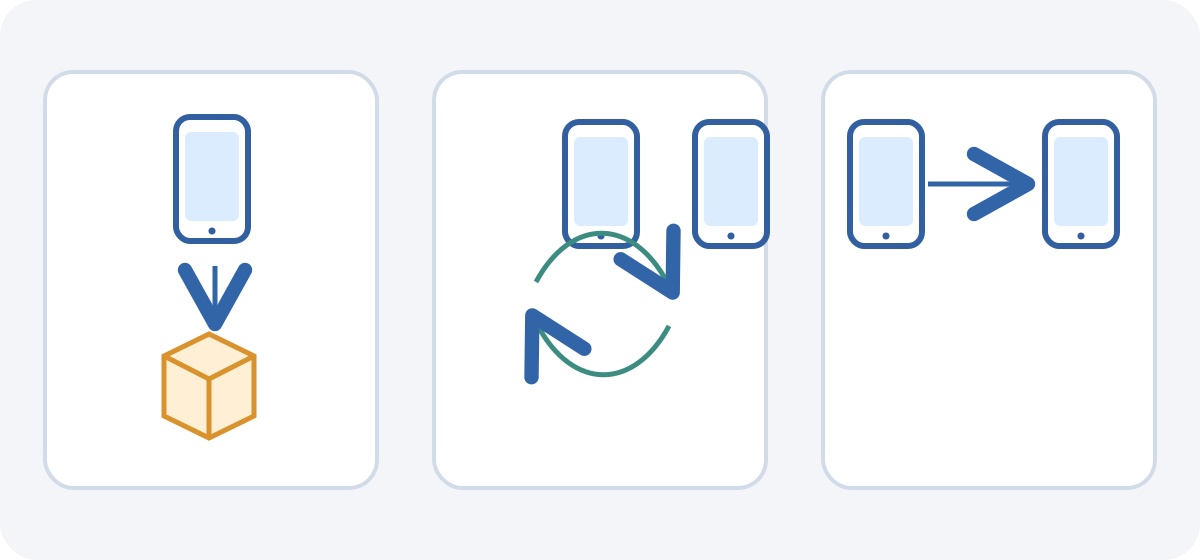
On the new phone, follow initial setup, connect to the internet and sign in to the right account. Choose a backup or cable/wireless transfer offered by the device and review the data categories. Steps depend on manufacturer and version. Some data can be restored only during setup or after a factory reset. Do not reset a configured phone just to test a backup: current data could be lost. A backup made on a newer Android version may not restore to an older one. Some apps and files continue downloading after setup. See Google’s migration guide. If a full restore on an already configured phone requires a reset, do so only after protecting current data you need and checking account access, local files and recovery methods for important apps.
A direct transfer does not necessarily leave an independent backup. Charge both phones, keep the old unlock method and account access available, and check compatibility first. Do not erase the old device until you have checked photos, contacts, documents, conversations, important apps and authentication methods on the new one. Follow WhatsApp’s separate process and remember that restoring an older chat history can replace a newer one.
Google’s setup transfer can move supported items such as some apps and app data, photos and videos, contacts, SMS/MMS, call history and some settings. It may not copy downloads such as PDFs, hidden folders, apps outside Google Play, unsupported app data, non-Google account content or every calendar/contact source. The options shown depend on the phones. Review the selection screen rather than assuming that the new phone will contain every file.
Check that the backup finished
Check each destination separately: Android backup date or status, Google Photos status, Drive files in the right account, and folders copied to a computer. In Smart Switch, review the completion result shown by the app. Open important files and confirm they can be read. A completion message does not prove every item is restorable; do not factory-reset to test it.
If storage is full or backup fails
Distinguish phone storage, Google Account storage and computer disk space. If Google storage is full, review which account and files use it; do not delete the only usable backup or photos before checking uploads. If Photos pauses, check account, status, folders, permissions and connection. For USB, try a data cable, unlock the phone and select File transfer again. Google says some backups can take up to 24 hours, but that is not a guaranteed duration. Do not install unknown drivers or backup apps. If data is missing, check other accounts, local folders and the app’s recovery instructions before deleting or overwriting anything.
Checklist before changing, selling or erasing the phone
- Google backup finished and uses the right account.
- Important photos and additional folders appear in Google Photos; you understand sync and deletion effects.
- Drive documents open and local files were copied, not moved.
- Contacts, SMS/RCS, WhatsApp, authenticator, banking and critical apps were checked separately.
- You can access the account and its verification and recovery methods.
- You checked important data on the new phone and will not erase the old one until then.
Frequently asked questions
- How do I back up Android? Use Google for compatible data, Photos for selected media, Drive for files and app or manufacturer tools where needed.
- Where is Google backup stored? In the Google Account selected for backup; contents depend on the phone and compatible apps.
- How do I start a manual backup? Search Settings for Backup, tap Back up now if available, then check the status.
- How do I check the latest backup? Check the date or status in Settings and separately check Photos, Drive and apps.
- What does Google back up? It may include compatible app data, settings, contacts, calls and SMS/MMS. Not every app is supported.
- Are my photos backed up? They are handled through Google Photos. Confirm account, folders and completed status.
- How do I save screenshots and downloads? Enable those folders in Photos if available, or copy/upload them separately.
- Are contacts saved? Google-synced contacts are in that account; SIM, local and other-account contacts need checking.
- Are SMS and RCS saved? SMS/MMS may be included; RCS depends on Google Messages and settings.
- Are WhatsApp chats in Android backup? WhatsApp has its own backup and transfer. Check account, number and date before migration.
- Can I back up without Google? You can copy accessible files or use compatible tools, but that does not save every setting or system datum.
- How do I copy Android files to a computer? Google documents USB for Windows and Chromebook; Mac steps depend on the manufacturer.
- How do I back up Samsung? Use Google if available or Smart Switch on a compatible Galaxy, following model instructions.
- What is Smart Switch? Samsung’s tool to transfer and, in supported cases, back up or restore Galaxy data; it is not universal.
- What if I run out of storage? Review storage and other copies; do not delete the only usable copy. Consider a computer or suitable storage option.
- How do I restore Android backup? During setup, sign in to the same account and choose an available backup. Some data requires initial setup.
- Can I restore it to another Android phone? Often, if versions and devices are compatible; a newer Android backup may not work on an older version.
- Why are apps or data missing? An app may not support backup, use another account or require its own restore or sign-in.
- How long does backup take? It depends on the data, connection and phone. Google says some may take up to 24 hours, not as a universal promise.
- What should I check before selling the phone? Verify important backups and the new phone, then follow official instructions to erase the old one.
Choose a method that matches your phone and the data you need: combine Google backup with Photos, Drive, a computer or manufacturer tools where appropriate. Check each result separately, review critical apps and keep the old phone until important information is available on the new one.
Related guides

Technology
The 5 best web browsers of 2026: privacy, security and features compared
Compare Chrome, Firefox, Edge, Brave and Safari by privacy controls, security features, compatibility and everyday use.
11 min read
Technology
How to back up an iPhone: iCloud, Mac and Windows step by step
Learn to save and restore iPhone data with iCloud, Finder on Mac or Apple Devices on Windows, and check that the backup finished.
12 min read

Technology
Types of phishing: examples and how to identify them
Compare mass phishing, spear phishing, whaling, smishing, vishing, QR phishing, clone phishing and BEC.
9 min read