
What is phishing? How to spot it and protect yourself from fraudulent emails
Learn what phishing is, how to check senders and links, secure accounts, and respond if you shared a password or code.
By TopicWeekPublished 10 min read
In this article
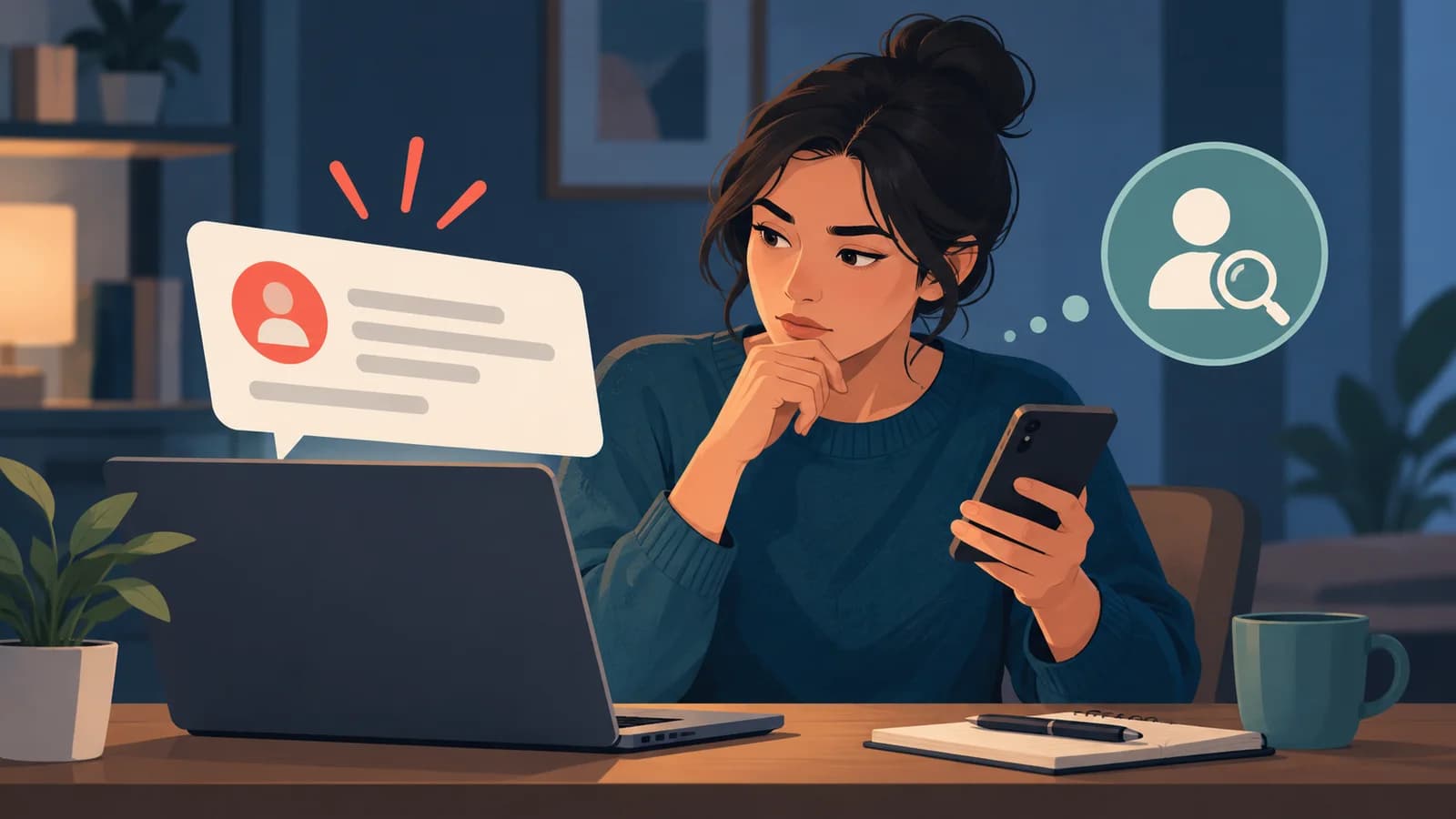
Phishing is deception that impersonates a trusted person or organisation to make you reveal information, approve an action, send money or open harmful content. Email is common, but messages, calls and websites are also used. Before replying or following a link, pause and verify through an app, address or number you already know. A logo, HTTPS padlock or polished wording does not by itself prove who is behind a message.
What phishing is
Phishing describes social-engineering tactics that make a person trust a false identity or request. An attacker may seek passwords, verification codes, financial or personal details, account access, a payment or a software installation. The goal and method vary; not every attempt follows the same sequence or seeks a password.
How an attempt works
A conceptual example: you receive an alert that appears to come from a familiar service; it claims there is a problem or pending action; it invites you to open a link or attachment; a page or file then tries to obtain information, money, access or an action. This is an illustration, not a universal template. The deception may be short, personalised and well written.
Warning signs to consider together
No single clue proves fraud. Consider the context, identity and request together. A legitimate request can be urgent, and a fraudulent message can be polished. Knowing your name, workplace or other correct details does not prove authenticity; they may come from public sources, data breaches or a compromised account.
- An unexpected request for a password, PIN, one-time code, bank details or sign-in approval. Do not disclose these in response to an unsolicited message.
- Pressure to act immediately, keep something secret, avoid suspension or claim a reward. Urgency deserves a pause but is not proof by itself.
- An unexpected link or file, a domain that differs from the service, changed payment details or a request outside the usual process.
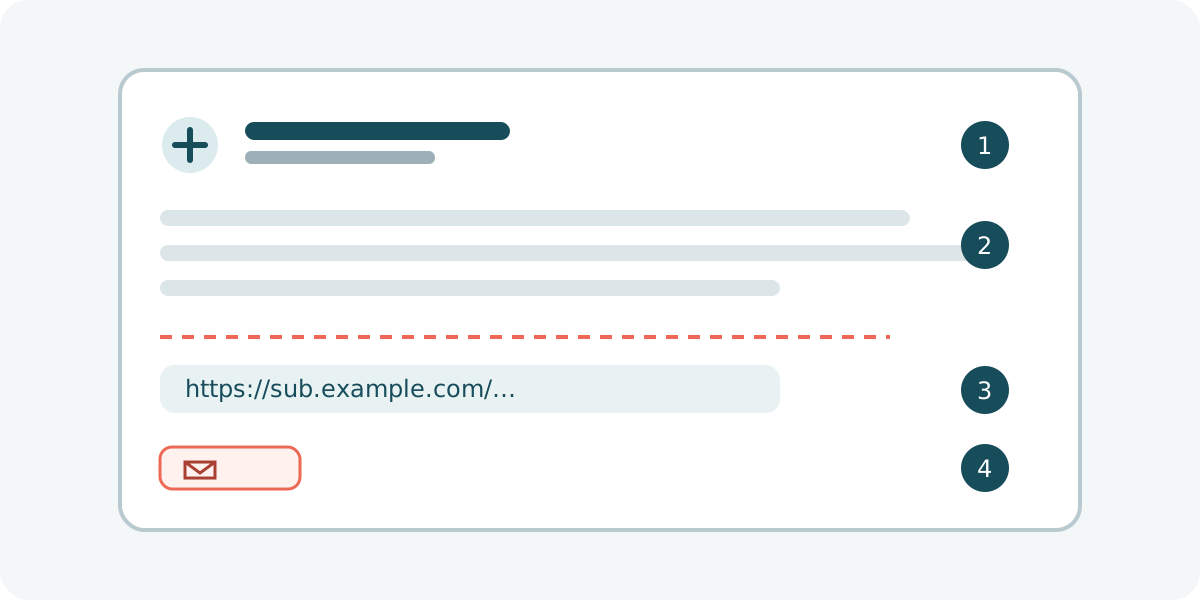
- A familiar display name that does not match the full address, a domain with added or substituted letters, or an unexpected sign-in page.
- An invoice, delivery, storage warning or unusual activity that you cannot confirm inside the official account or app. These are possible scenarios, not current campaigns.
- Spelling or formatting errors can be clues, but their absence proves nothing. Real accounts can also be compromised and send deceptive messages.
How to check a message without using its links
For requests involving an account, payment or personal information, do not verify through links or phone numbers in the message. Check the full sender address; a display name can be chosen or spoofed. Compare the domain with an official address you already have. Technical email authentication may add context, but it cannot tell you whether the request is honest.
- Do not reply or open unexpected links or attachments while assessing the message.
- Open the official app or a saved bookmark, or type an official address you already know. Do not copy a suspicious link to “test” it.
- For a bank, retailer or institution, use a number or channel already on your card, app or official paperwork, not details found only in the message.
- Check the exact request, transaction, date, recipient and reason. If you cannot confirm it independently, do not provide credentials, codes or money.
- Use your mail provider’s report-phishing feature where available. Filters and warnings help, but may miss messages or flag legitimate ones.
How to read a web address
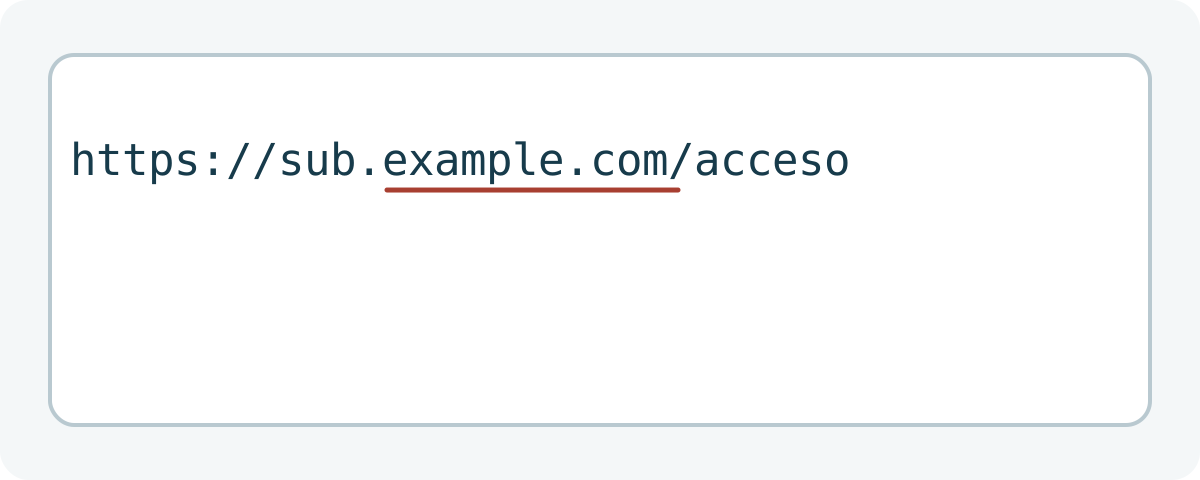
A web address includes a protocol, host name and path. To identify the site, do not search only for a brand word anywhere in the address: in `https://brand.example.com.verify.example.net/login`, the domain is under `example.net`; “brand.example.com” appears in the host name but is not the registrable domain. This is a fictional example using documentation domains. Similar-looking names and subdomains deserve attention, though a domain variation alone does not prove fraud. See IANA’s explanation of example domains.
Does HTTPS mean the page is genuine?
HTTPS and the padlock indicate an encrypted connection to the server whose certificate the browser validates. They do not endorse the operator or prove that the page is authentic: an impersonation site can also use HTTPS. If an unexpected page asks for a password, code or payment, leave it and open the service separately.
What SPF, DKIM and DMARC do—and do not—prove
SPF, DKIM and DMARC help mail systems assess whether a domain authorises certain messages and whether some details align. They do not certify the sender’s intent. An attacker can authenticate a domain they control, and a real account can be compromised. A failed check can also result from forwarding or configuration: it is a reason to review, not an automatic verdict. Gmail displays authentication details and has a “Report phishing” option; other services differ. Google authentication help. For DMARC alignment, see Google’s sender guidelines.
Fictional examples: how to verify
- Fictional bank: an unexpected alert threatens to block an account and demands immediate verification. Check in the app you open yourself; do not enter details from its link.
- Fictional parcel company: a message says a small fee is due for delivery. Check tracking on the official site or app using an expected reference; not every delivery charge is fraudulent.
- Fictional email service: a notice says the mailbox will close today and asks for a password. Sign in through your usual route and check account notifications.
- Fictional workplace: someone appearing to be a colleague asks you to open a document or re-enter credentials. Confirm through a known internal channel or IT. These examples are educational, not reusable messages or links.
If you only received the message
Receiving a message does not mean your account or device is compromised. Do not interact; verify separately if the request might be genuine, report it with the service’s tools, and delete or block it where appropriate. Do not forward suspicious attachments to colleagues. On a work device, follow internal guidance and notify security if required.
What to do if you interacted
Respond according to what happened. Opening a message or URL does not by itself prove account theft or malware installation; downloading, running, granting access, submitting credentials, sharing a code and approving a payment are different situations. Stop interacting and address the information that may have been exposed.
- You only opened the email or link: close the page and do not enter information or download files. Check whether a file downloaded, you granted permissions or unusual activity appeared. Opening a message alone does not automatically call for resetting the device.
- You entered a password: open the service independently and change it promptly. Change it anywhere you reused it, prioritising your main email. Review sessions, devices and recovery methods; close unfamiliar sessions and enable available MFA. Follow the provider’s official recovery advice.
- You shared a code or approved access: secure the account promptly through its official route, review sessions and recovery details, and contact support. One-time codes can enable access; MFA lowers some risks but cannot make deception impossible.
- You shared bank details or approved a payment: contact the bank immediately through a known official channel. Ask what steps apply to the card or transaction and monitor activity. Recovery cannot be guaranteed; options depend on the case and jurisdiction.
- You downloaded or ran a file: do not open it or grant further permissions. Update and run available security protection following official guidance. Downloading is not the same as running, and a scan may not detect every threat. For work devices, tell IT before removing evidence.
- You shared documents or personal information: keep the message, sender, dates and relevant correspondence. Ask the affected provider and competent authority in your country for identity or fraud guidance. Do not post sensitive information publicly to report it.
How to protect your accounts
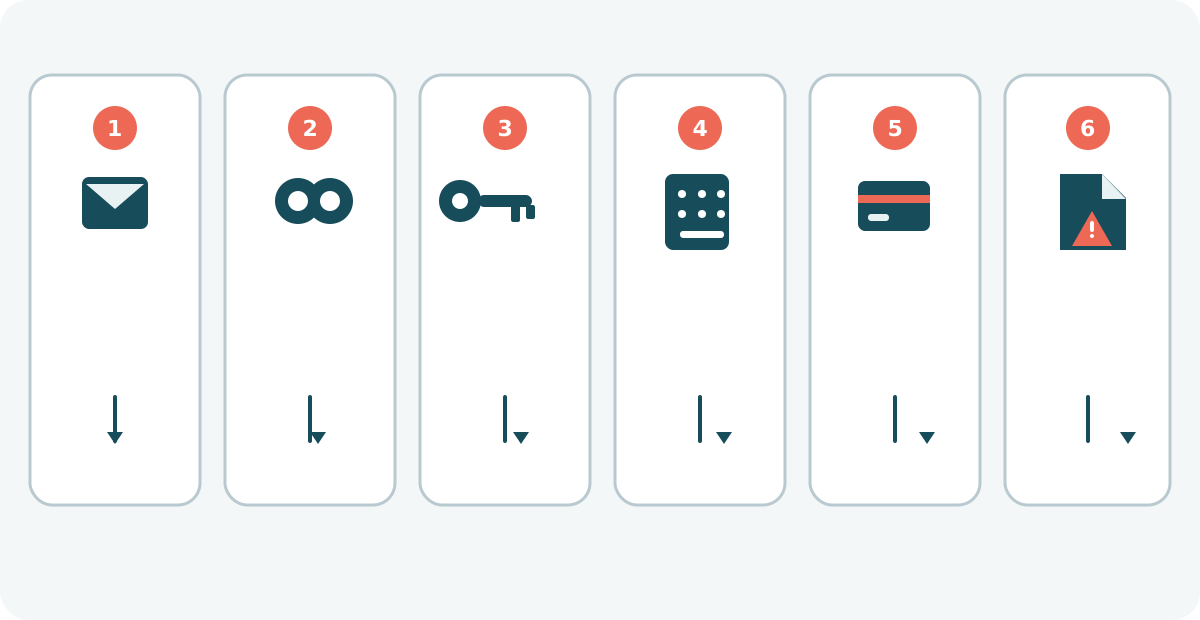
Use long, unique passwords; a password manager can help avoid reuse. Enable multifactor authentication and protect account-recovery methods. Passkeys can better resist credential phishing because they are tied to the site or service requesting them, but they do not prevent all social engineering or device compromise. Keep your system and browser updated, review sign-in alerts and active sessions, and never approve a request you did not initiate. No filter, antivirus, MFA or VPN replaces checking the sender and request. Learn about passkeys.
Phishing and other deception
Phishing is a form of impersonation and social engineering. It may include malware, but the terms are not synonyms: malware is harmful software; spam is unsolicited email and is not always fraudulent; a scam may use other channels or seek payment without stealing credentials. Variants use email, messages, calls or QR codes, as well as targeted attacks such as spear phishing. This is only context; our online scams guide covers other fraud. A VPN changes aspects of a connection but cannot establish whether a message is genuine or prevent phishing by itself. Generative AI can produce convincing wording, so style alone is not a reliable way to identify a message. See Gmail help on identifying and reporting phishing. For more on what a VPN does and does not do, see our VPN guide. UK NCSC analysis.
Where to get help and report
In Spain, INCIBE’s 017 service provides cybersecurity guidance; it is not a police reporting line. If money was lost or a crime may have occurred, contact the competent authorities. In the UK, consult the NCSC and local routes; in the US, the FTC provides consumer advice and reporting. These routes are not universal: elsewhere, find your country’s official cybersecurity body or authority. Keep relevant messages, dates and transaction records without publishing sensitive information. INCIBE (Spain) · NCSC (UK) · FTC (US).
A quick check before acting
- Pause: are you being rushed or told to keep it secret?
- What information, money, file or approval is requested?
- Does the full address and domain match a service you already know?
- Can you check the request in the app or website you opened yourself?
- Have you confirmed it through an independent contact route?
- Do not share passwords, codes or unexpected approvals; if you did, follow the relevant response steps promptly.
Frequently asked questions
- What is phishing? A deceptive attempt to impersonate someone trusted to obtain information, money, access or an action.
- How does it work? It presents a convincing identity or request and prompts a reply, page visit, download or approval; methods vary.
- What does phishing seek? Credentials, codes, personal or financial details, payments, account access or harmful downloads.
- How can I spot a fake email? Assess who sent it, what it asks, whether you expected it and whether it can be verified elsewhere. No single clue is enough.
- How do I check a sender? Review the full address and domain, not just the display name, and confirm through an official app or site.
- How do I know a link is safe? No visual inspection guarantees safety. If unsure, do not open it; visit the service through a known route.
- Does HTTPS make a site trustworthy? No. It encrypts the connection to the named site but does not prove the site represents the claimed organisation.
- Can a well-written email be phishing? Yes. Good writing proves neither identity nor legitimate intent.
- What if I open an email? That alone does not prove compromise. Avoid interaction and check whether you downloaded something or granted access.
- What if I clicked? Close the page and enter no details. If you downloaded, ran or authorised something, follow that specific guidance.
- What if I gave my password? Change it through the official service, change reused passwords, review sessions and recovery, and enable available MFA.
- What if I shared a code? Secure the account immediately through its official route, review activity and contact support.
- What if I gave bank details? Contact the bank through a known official channel promptly and follow its instructions.
- How can I protect an account? Use unique credentials, a manager, MFA or passkeys where supported, update devices and verify requests independently.
- Does MFA stop all phishing? No. It reduces some risks, but people can be tricked into sharing codes or approving access.
- Does a VPN prevent phishing? No. It cannot authenticate messages or destinations; check the sender, domain and request.
- Where can I report phishing? Use your provider’s reporting tool and the authority in your jurisdiction. Spain’s INCIBE 017 offers guidance, not police reporting.
- Are phishing and spam the same? No. Spam is unsolicited email; phishing attempts deception and can arrive through other channels.
Key point: verify a request through an independent channel before acting. If you shared information, respond according to what was exposed and seek official help where appropriate. For other digital fraud, see our general online scams guide. For more on what a VPN does and does not do, see our VPN guide. UK NCSC analysis.
Related guides

Technology
The 5 best web browsers of 2026: privacy, security and features compared
Compare Chrome, Firefox, Edge, Brave and Safari by privacy controls, security features, compatibility and everyday use.
11 min read

Technology
How to back up Android: Google, photos and files step by step
Learn how to back up Android with Google, save photos and files, transfer data and check what can be restored.
11 min read
Technology
How to back up an iPhone: iCloud, Mac and Windows step by step
Learn to save and restore iPhone data with iCloud, Finder on Mac or Apple Devices on Windows, and check that the backup finished.
12 min read